Candidate Management
Copy Article URL
Use this guide to understand how candidates enter a job in Ovii, how intake sources appear in the table, how recruiters move candidates into interview stages, and how interviewer assignment works in the current workflow.
What the Candidates tab controls
The Candidates tab is the operating table for one job. It is where recruiters see everyone who has entered the role, regardless of whether they came from recruiter upload, public job boards, branded careers pages, referrals, vendors, or campus promotion.
In practice, this tab solves three different problems at once. First, it consolidates intake from multiple channels into one governed list. Second, it shows the live pipeline position of each candidate. Third, it gives the recruiter the controls needed to move candidates forward, reject them, or assign interviewers without leaving the job context.
That is why this page matters more than it first appears. It is not just a list of resumes. It is the job-specific operating system for intake, evaluation, and progression.
- Use it as the source-of-truth list for the job: If a candidate belongs to this role, the recruiter-side workflow should be traceable from this table rather than through scattered email, spreadsheets, or side conversations.
- Treat the source column and stage column differently: Source tells you where the candidate came from. Stage tells you where they are now. Those are related, but they are not the same signal.
- Expect the page to behave like an operations console: Filters, stage moves, invite resends, candidate review, and interviewer assignment are all job-scoped actions, not generic profile actions.
Understand how candidates enter the job
Ovii preserves intake provenance on every candidate. That is why the table can show who was uploaded by a recruiter, who applied through a public board, who was referred by an employee, who came from a vendor, and who entered through a campus or branded-board flow.
That provenance matters operationally. Source attribution helps recruiters assess channel quality, explain pipeline mix, and maintain trust in downstream reporting.
- Recruiter: A candidate was added directly by the hiring team. In the UI this can happen through single upload or bulk upload, but both are intentionally presented as recruiter-owned intake in the table.
- JobBoard: The candidate applied through the public Ovii job-board flow.
- Career Board: The candidate applied through the company’s branded or white-labeled careers page.
- Referral: The resume entered through the employee-referral workflow.
- Vendor: The profile was submitted by a trusted vendor assigned to the job.
- Student: The candidate entered from the campus or TPO flow.
- Candidate: This is the direct candidate-upload path used in other candidate-facing flows. It may not be the most common recruiter-side intake channel, but the source can still appear in the table.
Source is stored separately from pipeline stage. A referred candidate can still be in an early intake stage, and a recruiter-uploaded candidate can later sit in Assessment, Async Video, or a custom interview round.
Upload resumes from the Candidates tab
The Add candidates action opens the recruiter upload modal for this job. This is the fastest way to seed the job with external resumes before any public promotion channel starts sending applications.
The modal supports both single upload and bulk upload. Single upload is useful when a recruiter wants to add one profile immediately. Bulk upload is better when the recruiter is importing a shortlist from another channel, agency handoff, previous sourcing exercise, or event pipeline.
This is operationally important because recruiter intake is the cleanest starting point for controlled evaluation. The recruiter chooses the job context first, then attaches resumes to that job deliberately rather than trying to reconcile them later.
- Single and bulk modes are intentionally different: Single upload is for one-off intake. Bulk mode is for up to 10 resumes in one action so the recruiter can populate the job quickly without losing job context.
- Accepted file types are recruiter-friendly: The upload flow accepts PDF, DOC, and DOCX resumes, which keeps intake practical for the formats recruiters receive in real hiring work.
- Bulk upload is still treated as recruiter-owned intake: Even when the backend processes the files asynchronously, the candidates appear to recruiters as recruiter-sourced records rather than as a separate channel that confuses reporting.
Upload one or more resumes into the job
Open Add candidates, choose single or bulk mode, and attach the resumes you want to associate with this job. Use single upload for immediate one-off review and bulk upload when you need to bring a sourced shortlist into the role in one pass.
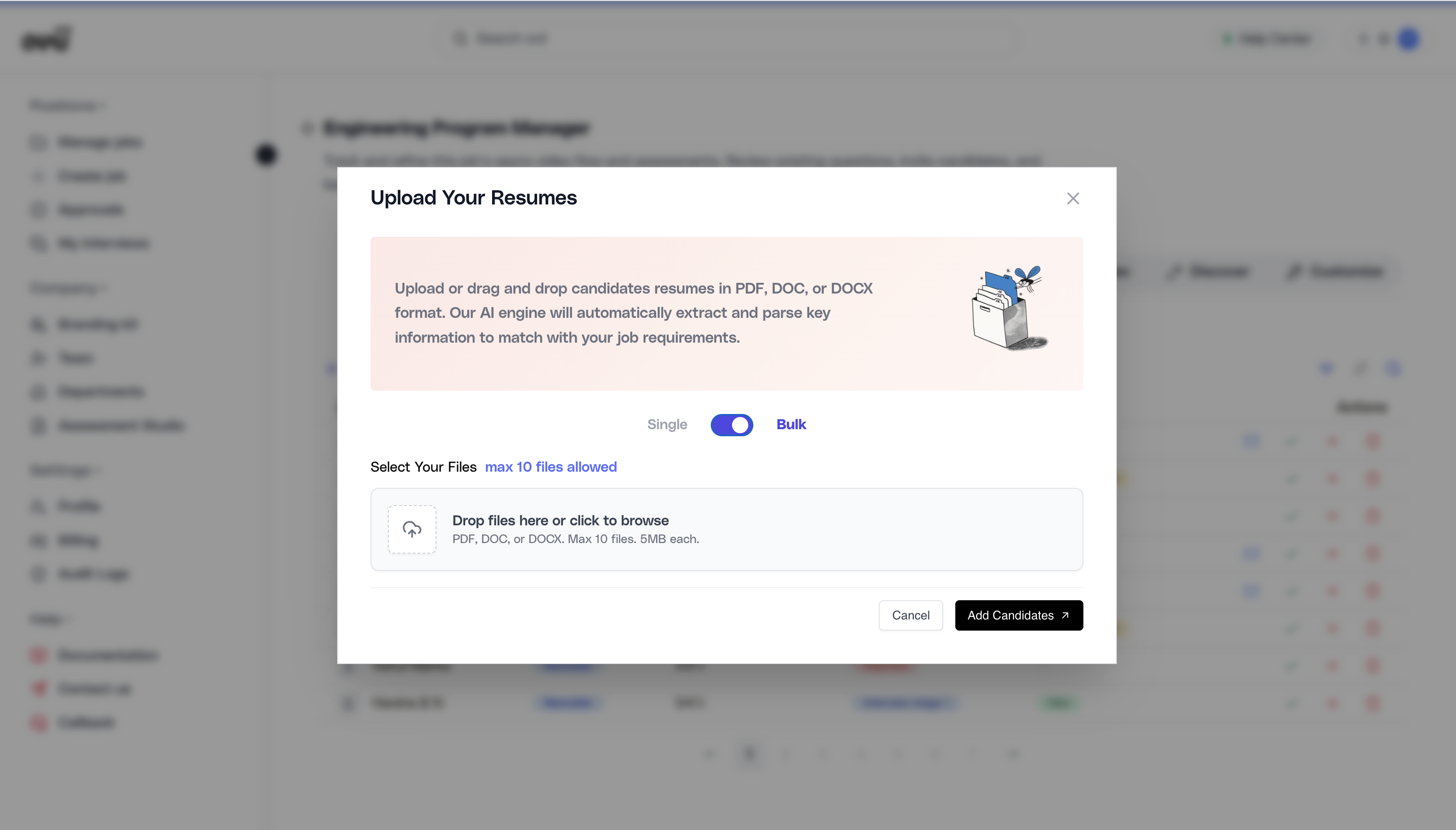
Recruiter bulk uploads are queued and processed in the background. In practice, that means a large upload may not appear as a fully parsed list instantly, but the job-scoped intake remains tied to the same recruiter workflow.
Read the Candidates table correctly
The table combines source, match score, stage, status, and action controls into one surface. Most confusion on this page comes from reading Stage and Status as if they were the same thing.
They are not. Stage tells you where the candidate is in the job workflow. Status tells you what is happening inside that stage. Once that mental model is clear, the rest of the page becomes much easier to use correctly.
- Intake candidates are normalized to Initialized: Internally, the system distinguishes codes such as APPLIED, UPLOADED, REFERRED, and VENDOR. The recruiter-facing table intentionally normalizes those intake states to Initialized so the earliest workflow step reads more cleanly.
- Assessment and Async Video split stage from live progress: When a candidate is in Assessment or Async Video, the Stage column shows that step, while the Status column shows operational progress such as Invited, Started, Evaluating, Completed, Expired, or Not Invited.
- Interview stages use status to reflect evaluation activity: In manual interview rounds, the Status column can show Not Assigned, Pending, or the current recommendation signal pulled from submitted feedback for that stage.
- The table actions are operational, not decorative: The green action is the move-forward control, the red action handles rejection, delete removes the candidate record, and resend actions appear when assessment or async-video invitation flows are active.
- Filters and sorts are meant to reduce operating noise: Use search, source filters, stage filters, status filters, and column sorting to work the role systematically instead of scanning the raw list every time.
Use source, stage, and status together when reading the list
Review the candidate table as a joined operating view. Source tells you where the profile came from, Stage tells you the current workflow checkpoint, and Status tells you what is happening inside that checkpoint. This is the right way to explain candidate state to hiring managers and interviewers without mixing intake with evaluation.
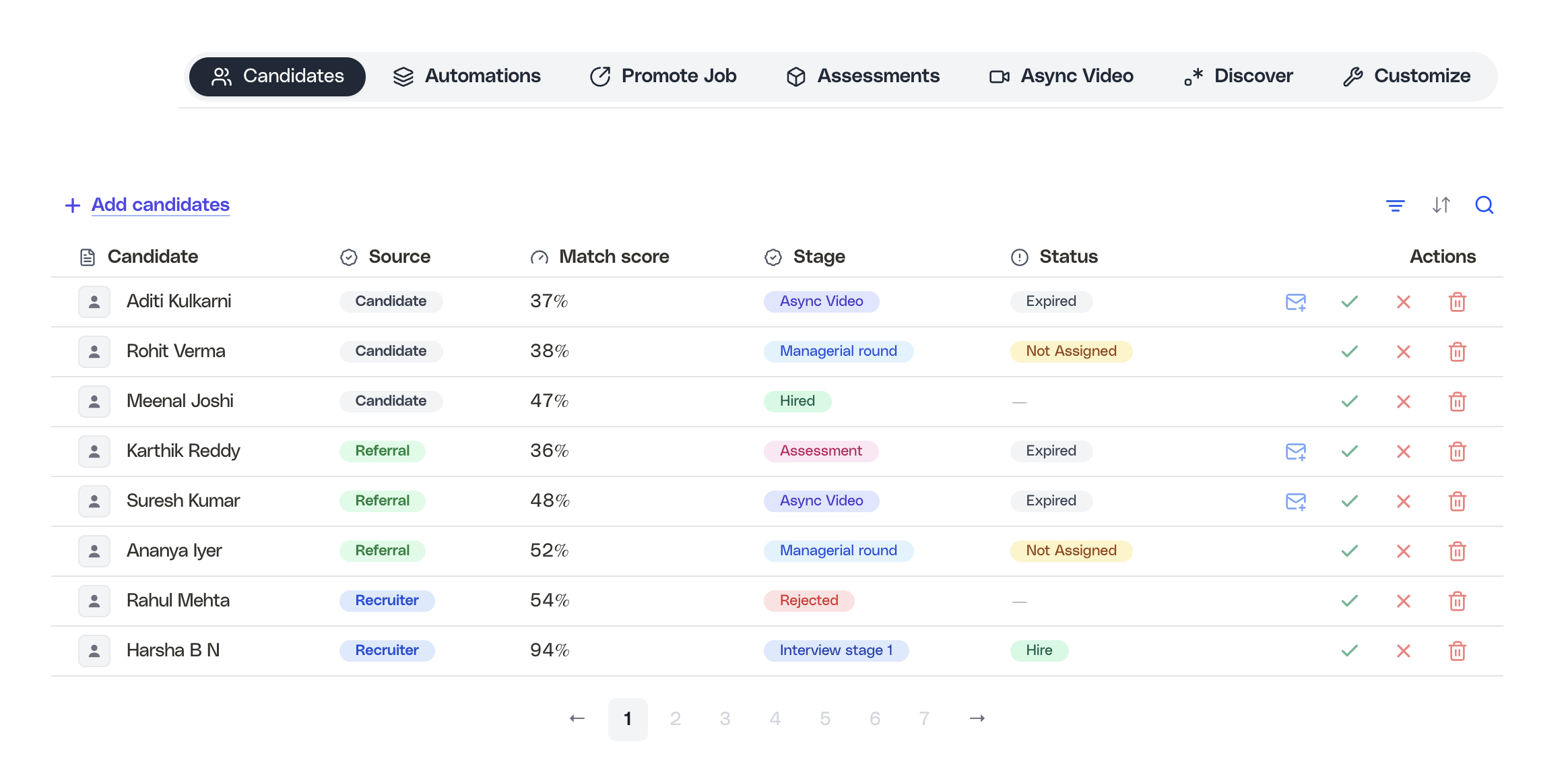
Depending on subscription state, match-score visibility can be limited for some rows. Treat match score as one decision aid, not the only ranking signal.
Move candidates into and through the pipeline
Candidate progression is manual by design. Ovii no longer auto-advances candidates just because feedback was submitted. That means recruiters stay in control of the stage transition and can decide when the evidence is sufficient to move a person forward.
This is especially important for enterprise hiring, where panel input, approver expectations, and candidate readiness do not always resolve neatly into an automatic rule. Manual progression keeps the system defensible even when the workflow is complex.
- Candidates usually begin in the intake layer: Recruiter uploads, referrals, vendor submissions, and public applicants all start as intake records before the recruiter moves them into the actual interview pipeline.
- Forward movement is enforced: The stage-change flow blocks backward movement. Recruiters can stay in the same stage for assignment-related actions, but they cannot push a candidate into an earlier stage through the normal move flow.
- Pipeline readiness is checked before intake-stage progression: If a candidate is still in the intake stage, the UI checks whether the pipeline and feedback template are approved. If Assessment or Async Video are active in the pipeline, the corresponding question sets must exist before recruiters move candidates into those steps.
- Assessment and Async Video are special stages: They behave like pipeline stages, but their operational status is driven by invitation and completion progress rather than by manual interviewer feedback.
Move a candidate from intake into the correct next stage
Use the move action to choose the target stage for the candidate. Keep the selection aligned with the real hiring order, and do not treat stage names as placeholders. If the role uses Assessment or Async Video, make sure those assets are configured before you move the candidate there.
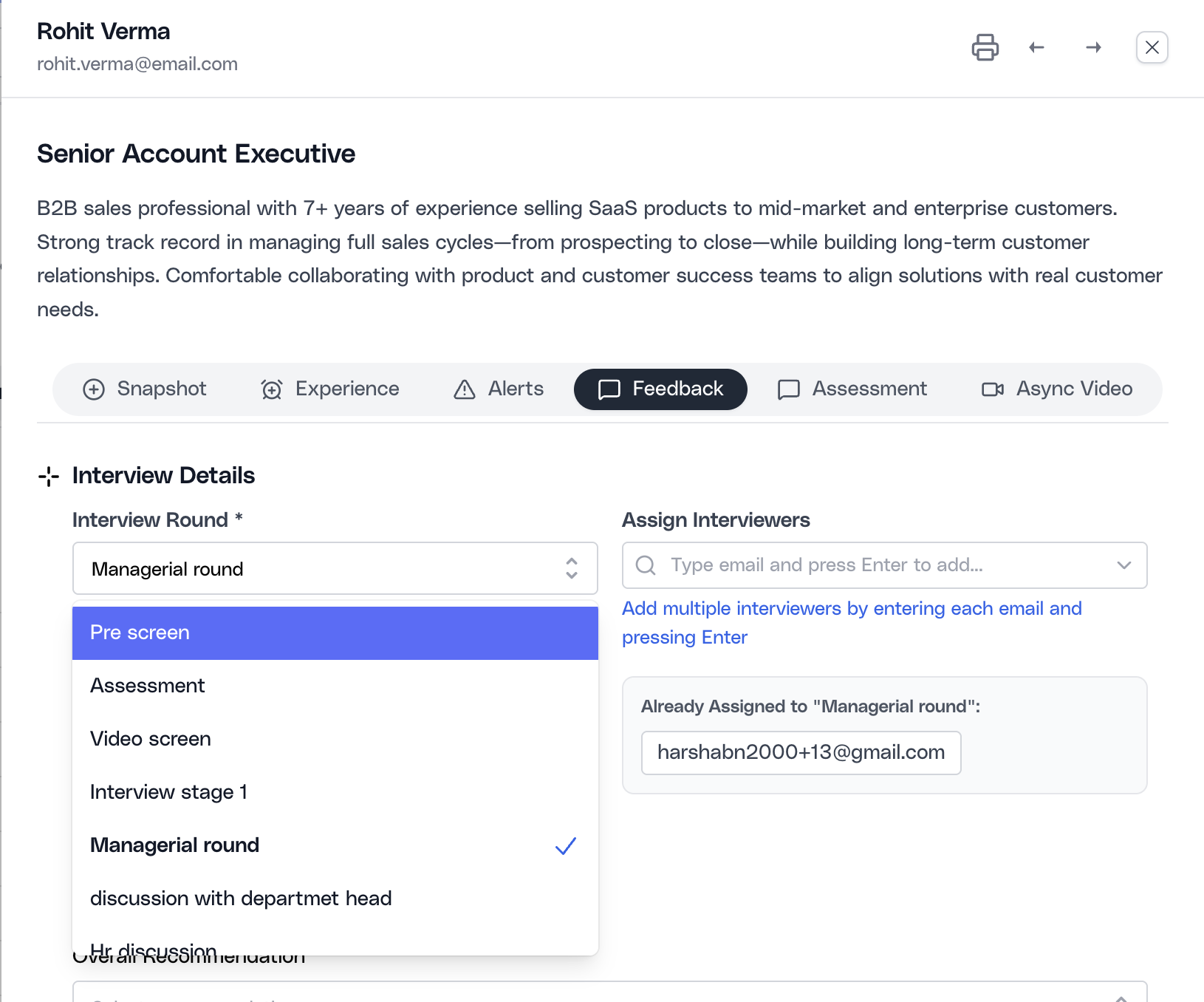
If the candidate is still in intake and required setup is missing, Ovii redirects the recruiter toward the feedback or assessment configuration surfaces instead of allowing a premature move.
Rejecting a candidate from the intake layer follows the same readiness logic. The system pushes recruiters toward a configured workflow before they start making hard disposition decisions.
Assign interviewers to the right stage
Interviewer assignment in the current workflow is stage-based and on-demand. Recruiters do not have to pre-wire every interviewer to every candidate in advance. Instead, the recruiter can assign interviewers when moving a candidate into a live interview round, or assign them later while keeping the candidate in the same stage.
That is a better model for enterprise hiring because the panel is often not final at the moment a candidate first enters the pipeline. Stage-based assignment lets the recruiter coordinate the right people at the right checkpoint instead of over-configuring the whole panel upfront.
- Assignment is only shown for non-automated stages: Assessment and Async Video do not need human interviewers, so the interviewer input is intentionally hidden when the selected stage is automated.
- Same-stage assignment is allowed: If the candidate is already in the correct interview round, recruiters can keep the stage unchanged and use the modal purely to assign interviewers.
- Interviewers are assigned by email: The recruiter enters one or more interviewer email addresses, and Ovii creates explicit candidate-to-stage assignments so the right interviewers can see and work the candidate.
- Only HR and Org Admin can assign interviewers by email: The backend enforces this permission check. If a user without the required role tries to assign interviewers, the request is blocked even if they can see the candidate.
Assign interviewers while moving the candidate into an interview round
Choose the target interview stage, then add one or more interviewer email addresses before confirming the move. Use this when the candidate is ready for a human-evaluation round and the ownership for that stage is already known.
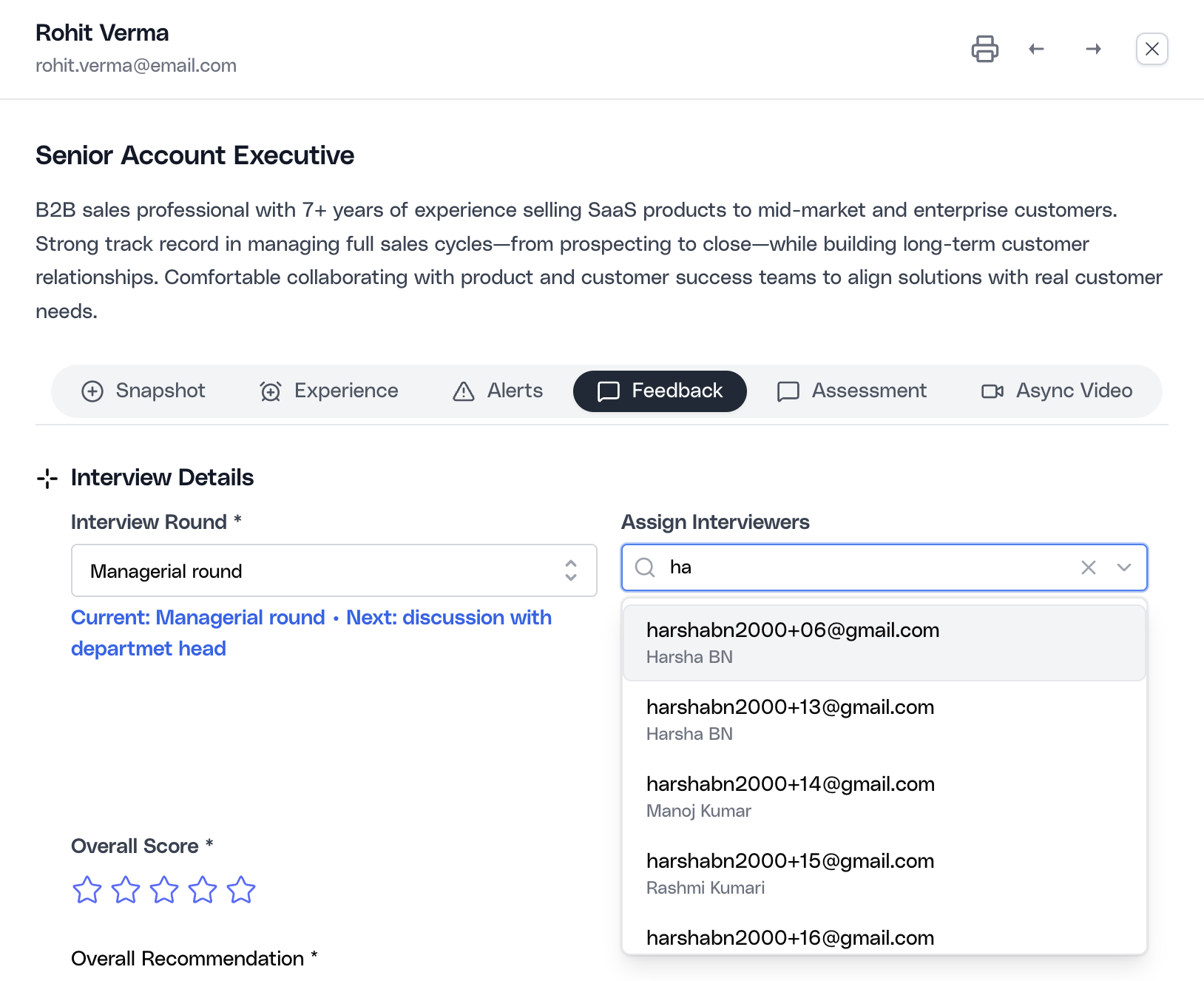
The same stage-assignment capability is also available from the candidate feedback surface inside the drawer. That is useful when the recruiter is already reviewing the candidate in detail and needs to adjust interviewer ownership without leaving the record.
Use the candidate drawer for deeper review
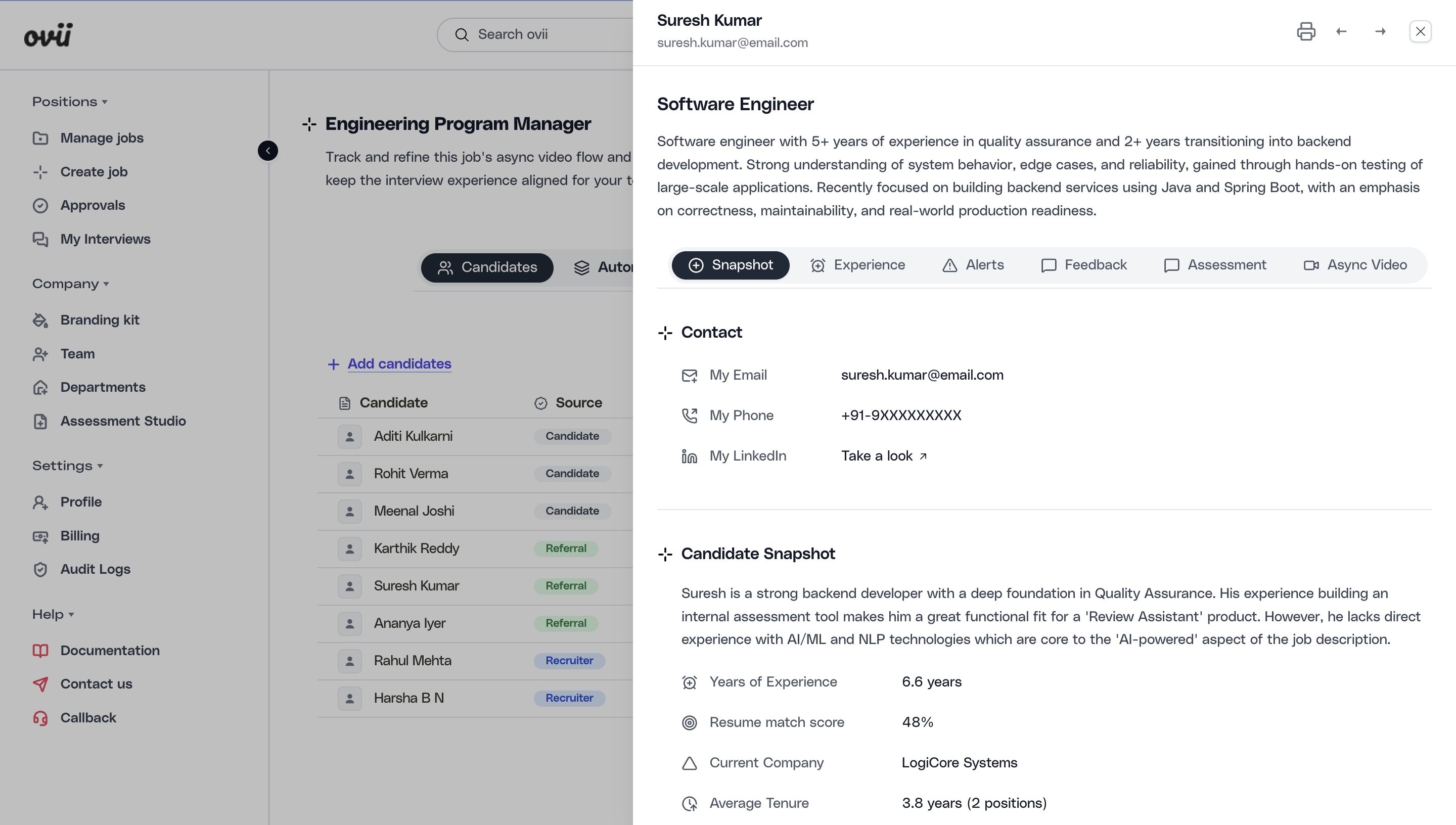
Clicking a candidate opens the job-scoped review drawer. This is where the recruiter stops thinking in table rows and starts working with the full candidate record.
The drawer consolidates profile review, structured resume data, stage-aware feedback, assessment outcomes, and async-video results into one candidate workspace. That is why the list and the drawer should be used together, not as separate tools.
- Snapshot, Experience, Skills, and Alerts support profile review: These views help the recruiter assess whether the parsed resume content, experience history, and risk signals actually align with the role.
- Feedback is stage-aware: The feedback area uses the candidate’s current or assigned stage context, shows interviewer assignment state, and helps recruiters understand whether a stage is pending, not assigned, or already evaluated.
- Assessment and Async Video are reviewed in their own views: Once a candidate enters those automated steps and results exist, the recruiter can inspect them from the same candidate workspace instead of switching to a separate reporting tool.
- Feedback does not auto-promote candidates: Submitting interviewer feedback records evidence, but the recruiter still manually decides when to update the candidate’s stage afterward.
Open the candidate drawer to review the full record
Select a candidate from the table when you need deeper context than the list can provide. The drawer is the detailed workspace for that candidate inside the current job, so recruiters can inspect profile data, resume parsing, stage context, interviewer feedback, and automated evaluation results without leaving the hiring workflow.
Operating guardrails for candidate flow
The candidate flow works best when recruiters treat the job as a governed workflow instead of a loose collection of profiles. The point is not only to review resumes faster. The point is to preserve provenance, create consistent stage movement, and keep the panel workflow explainable.
In enterprise hiring, candidate confusion usually comes from workflow inconsistency: sources are lost, stages are edited too late, interviewers are assigned informally, or feedback is mistaken for stage progression. The candidate tab is valuable because it prevents those problems when used intentionally.
- Preserve source truth: Do not treat every candidate as if they were recruiter-uploaded. Channel attribution is useful for quality analysis, governance, and pipeline reporting.
- Move only when the next step is operationally ready: If the job uses assessment or async video, configure those assets before pushing candidates into those stages.
- Assign interviewers by stage, not by memory: If an interviewer is expected to act on a candidate, their assignment should exist in the system so pending feedback and accountability remain visible.
- Keep status interpretation consistent across the team: Everyone should understand that Initialized is intake, Stage is workflow position, and Status is the live condition within that position.